
Usage
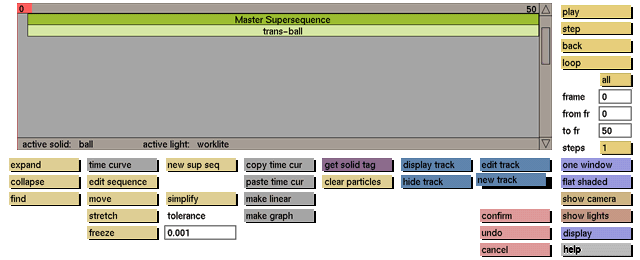
Click the new track button to activate it. The edit track submenu will appear, where you can create a new track.
Comments
You can call in a previously created track from storage, or you can switch to the track points submenu for the creation of a completely new track point by point. If you try to exit the track submenu without assigning the track to an item, you will receive the following prompt at the bottom of the menu:
Do you wish to abandon the current track? (y/n)

If, in response to this prompt, you enter y for yes, the new track will be thrown away and the animation menu will appear. If you enter n for no, you will stay in the edit track submenu to assign the track to an item or to save it.
See also
edit track submenu, track point submenu


