
Introduction
GIG 3DGO and GIGVIZ feature a custom interpreted scripting language called
Intercol. This Intercol used to be accessible to GIG users, but
was encapsulated in later versions.
However, it still can be convenient to be able to read Intercol files.
This is the case when special tools (e.g. converters) produce data in
Intercol syntax.
You can use this option to read such a file.
Intercol files are commonly suffixed with the .int extention.
Preparation
The get intercol feature expects
its input files to be in the
intlib directory. This can either be the intlib directory in your
~/lib/intlib or ~/projects/my_prj/intlib.
The file name must have the extension .int (in lower case).
Assuming the user is currently in the directory where the Intercol file is
stored, the Intercol file has the name test.int and the user's
project is named 'convert', then the following command has to be executed:
cp test.int ~gig/projects/convert_prj/intlib
The intlib directory of the currently active project could also be accessed using the environment variable LD:
mv test.int $LD
This command will move the file test.int to the intlib directory of the
currently active project.
Usage
Now a copy of the Intercol file has been placed in the correct
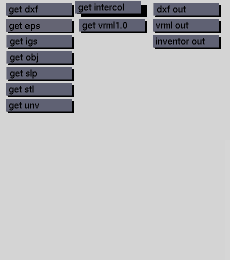
directory, select the get intercol button
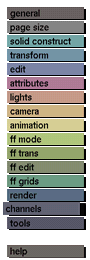
from the channels menu in the GIG interface.
The selection submenu will then be displayed where you can make your selection.
Unexpected appearance of Nurbs models in GIG
Many CAD systems use B-spline or Nurbs surfaces to write their data to file.
The default representation of Nurbs in the GIG interface is the
Nurbs
control polygon. This polygon often does not resemble the
actual shape of the object. Choosing another display mode will
show a better representation of the Nurbs.
In some cases, a Nurbs object will be regarded as 'solid' when it should be 'hollow' or the other way around. For example, a hollow cylinder in a CAD system might appear as a solid cylinder, with end planes, in GIG. In this case you can toggle the solid/hollow box in the solid construct menu for each individual Nurbs object.
Large CAD files
Sometimes a CAD model that has been converted to Intercol format produces a
model that is too large for the standard configuration of
GIG. In these cases, stack overflow error messages can appear while
reading the Intercol file. Usually, this can be solved by copying a configuration file
with larger configuration values to your home directory. This will
cause GIG to require more swapspace. The large configuration file
should not be necessary for Intercol files of less than 10 MB.
Assuming the user is currently in the GIG home directory, then the following command has to be executed:
cp lib/intlib/confile.big confile
Restart GIG and convert the IGES file as described above.
Comments
Intercol files come in two versions: a crypted unreadable format and
a human-readable ASCII format. Only the crypted format is accessible
to customers.
The Intercol file format can describe much more than just model geometry. Parts of
the GIG program itself are defined in Intercol. Such files can be found in
the lib/intlib and projects/library_prj/intlib
directories; they do not contain model information and should not be
imported through the use of the get intercol
button. Trying to read random Intercol files can cause random results.
See also: SDRC (I-DEAS) to GIG converter, Varimetrix to GIG converter, confile.


