
Usage
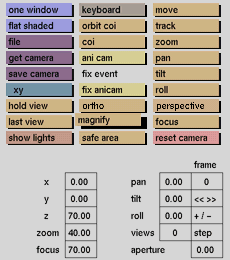
Click the magnify button to activate it.Then, click the point that you want to become the centre of the new window (to chage the centre point, click the right mouse button on the new position).
Moving the mouse will show a red outline that indicates the portion which will fill the entire camera window. Clicking the left mouse button again will result in the selected portion being magnified to fill the camera window.
Comments
The new view is achieved by changing pan, tilt and zoom values for the camera; the location of the camera remains unchanged. If an extreme corner of a window is selected, the result may not be as expected.



