
Usage
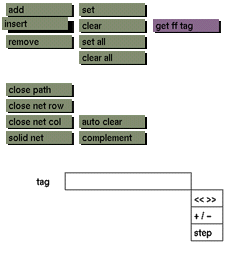
Click the insert button to activate it. The window will be redrawn to display the control points and the connecting lines between these control points. Click a connecting line to insert a new control point or path. Next you can drag the new control point or path to a new position by holding down the middle mouse button and moving the mouse. Click the left mouse button to confirm the new position of the new control point or path.
Comments
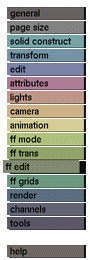
The insert button does not deactivate by itself. Multiple insertions are possible while the button remains active. Select another button on the menu or another menu to deactivate the button. The insert button does not function when point mode is active.
See also
add, remove point, point in path, point in net, path, path in net:
ff mode menu


