
Usage
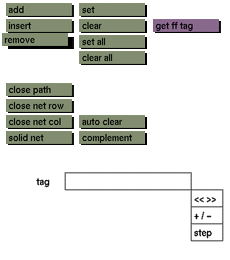
Click the remove button to activate it. The window will be redrawn to display the control points and the lines that connect these control points. Click the control point you want to remove, or the connecting line as a part of the path that you want to remove.
Comments
The remove button does not deactivate by itself. Multiple removals are possible while the button remains active. Select another button on the menu or another menu to deactivate the button. The remove button does not function when point mode is active. When path mode is active the entire path will be removed the moment the remove button is clicked! When point in net, path in net, or net is active, you can remove paths from the net until only two paths remain in either the row or column direction.
See also
add, insert, point in path, point in net, path, path in net,
ff mode menu.


