
____________________________________________________________________________________
____________________________________________________________________________________
Usage
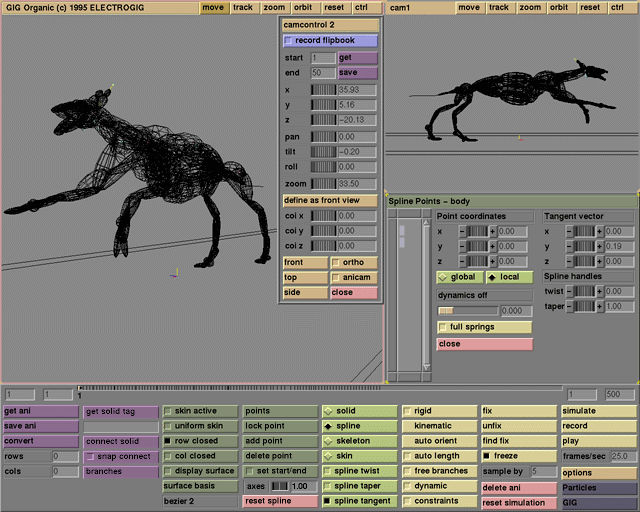
Click the get solid tag button to activate it. A selection box will pop up from which a tag can be selected. Selection boxes have a filterfield that helps in finding a tag: for example, type A to see all tags that start with the letter A, and type *2 to see all tags that have a 2 in them. The selected tag is displayed below the button. The selected object or subtree of objects becomes active, which means that only these objects are affected by actions in the user interface (such as picking with the mouse, setting properties like kinematic, or performing actions as reset spline).
It is possible to change a tag by picking the tag entry box itself. The tag of the active object in the GIG-tree will be changed to the new value.
Comments
Selection will continue to work while the selection box remains on screen. It is not necessary to click confirm. Picking an object on the screen while in solid editing mode has the same effect as picking it in the selection box. This is especially handy for objects with no tag but it selects only single solids. Through the tag entry field a tag can be given to those objects as well. The u(p), l(eft) and r(ight) keyboard shortcuts also work in Organic.
See also
solid
____________________________________________________________________________________
Usage
Click the connect solid button to activate it. A selection box will pop up displaying the tags of the splines to which the selected object can be attached. One or two splines should be chosen for a valid connection.
It is possible to connect both ends of the solid to one spline by choosing the spline twice in the selection box. If snap connect is active, the solid is transformed to fit between the two points on the splines, or if only one spline is selected, it is repositioned to the start of the spline. If snap connect is not active, the solid will keep its original transformation.
The position of the points on the splines can be changed with the start and end values. The general size of the solid can be changed with the size value. This general scale factor is applied in addition to an automatic scale factor that tries to restore the volume of the connected solid when the splines move. Choosing two splines results in object volume scaling to achieve a bulging muscle effect. If this is undesired, just choose one spline. If one spline is chosen, the end parameter will not have any effect.
Comments
It is often desirable to hide the skin when solids are connected to the spline. In this case the splines are used as a skeleton structure underlying a model. This works especially well with sculptor objects (e.g., S balls). The size of the solid is clamped when the begin and end points are inadvertently set to the same value (which would make volume preservation impossible). Splines are connected to each other with the branches mechanism, not through connect solid.
See also
start, end, size, branches, skin active
____________________________________________________________________________________
Usage
Click the snap connect button to activate or deactivate it.
See also
connect solid
____________________________________________________________________________________
Usage
First select a spline point, then click the branches button to activate it. A selection box will pop up displaying tags of splines that can be attached to the selected spline point. The connection is between the selected point and the first spline point of the branch spline. The movements of the branch spline follow the movements of the spline point it has been attached to. This behavior can propagate through an entire tree of branches.
It also works the other way around: when the first spline point of a branch spline is moved, the spline point that it has been attached to moves with it. It is not allowed to construct a loop of branches. A spline can be a branch of only one other spline point, although one spline point can have many branches.
Comments
With kinematic branch splines, only the first point follows (the rest is supposed to follow through the inverse kinematics laws).
____________________________________________________________________________________





