RenderManager
RenderClient source buttons - columns 1 & 2
____________________________________________________________________________________

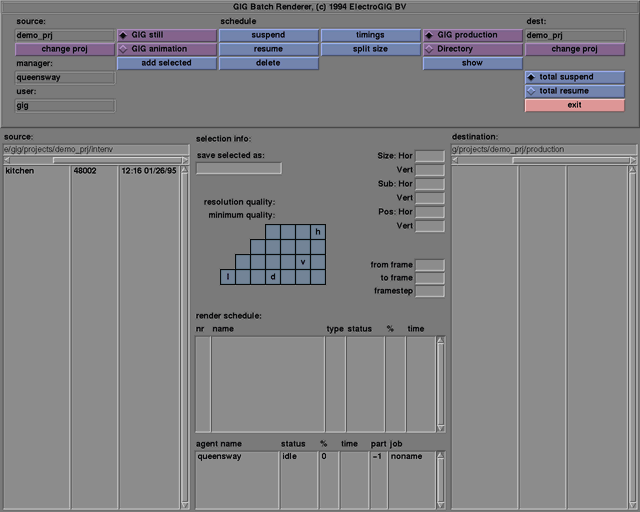
The RenderClient is the interface part of the RenderManager. A user can control the RenderManager via RenderClient.
The top part of the graphical user interface contains the controls that will be explained in the following sections.
The middle lower part of the interface gives various kinds of status information, which in some cases can be adjusted.






____________________________________________________________________________________
RenderManager source buttons - column 1 & 2
Is a label of the current source project. The still and animation files of this project are shown in the source listbox.
The change proj button appears in a dialogue box with which the source project might be changed. A new project can be selected by a left mouse click and a press to confirm. A new project might also be selected by a double click of the left mouse button. The name of the project name will be changed with the selected name and the source listbox will be updated.
Is a label where the name of the RenderManager is displayed. If no connection can be made with the manager, the text "trying to connect" is displayed.
Is a label where the name of the current user is displayed.
Selecting GIG still will list the stills that have been saved in GIG in the source listbox. This is also the default selection when starting the RenderClient process.
GIG animation
Selecting GIG animation will list the animations that have been saved in GIG in the source listbox. This is also the default selection when starting the RenderClient process.
A still or animation that has been selected in the source listbox will be queued to the render process after the add selected is selected. During the queueing the button will be temporarely disabled. The text will be grey. The schedule listbox will be updated.
- Note:
- It will take some time (a few seconds, depending on the size of your animation or still) before this information will appear in the schedule listbox.
Other RenderClient functions
