Usage
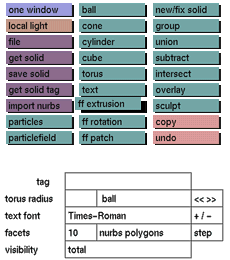
Click the ff extrusion button to activate it. The default free form
extrusion shape will be added to the environment.
Comments
An extrusion is a 2d path of points to which a thickness is added
by
translating the path in the third dimension. Default thickness is
one
unit.
Once a free form has been added to the environment, it can be reshaped by
using the functions available in the ff mode, ff trans, ff edit and
ff grids menus. Make sure that the free form that you want to reshape
is the only part of the tree that is active when selecting one of the above
mentioned menus, otherwise nothing will happen.
Also, take care that you do not open up the closed contour (the 2d path
of points). This would create a non-solid extrusion (like a ribbon) that might
give problems during rendering. If you want to make a ribbon like shape, use a
closed contour that doubles back on itself instead.
A free form extrusion has three side attributes.
The way in which the free form extrusion is added to the environment
depends on which of the following toggle buttons is active: new/fix solid, group, union, subtract, intersect or overlay. See ball for example.
Remember, if you introduce a new solid you should give it a tag in
the tag input box in the status area.
See also
undo, new/fix solid, group, union, subtract, intersect, overlay
Example:
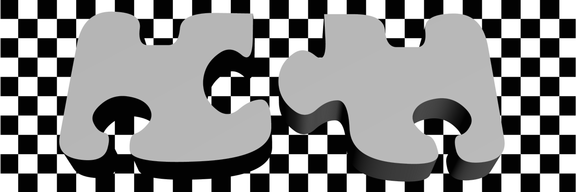
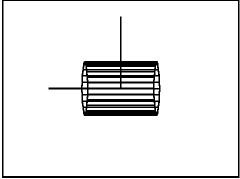
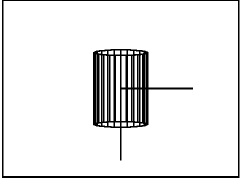
An ff extrusion as seen from the side, the front, the top and the ff mode front view