Usage
Click the union toggle button to activate it. A solid (e.g. ball)
can now
be selected to union it to the currently active part of the tree.
The new
selected solid will be placed at the right side of the currently
active
part of the tree.
Comments
The main reason for performing a union instead of a group is to avoid
the
visibility of internal surfaces in case of transparent and overlapping
solids.
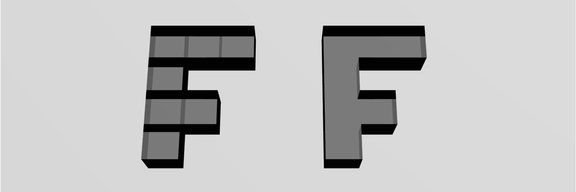
The transparent letter F as illustrated in Example is made
from a
number of cubes. For the F on the left, group was used to construct
the
object; note the internal surfaces are visible. For the F on the
right,
union was used. Note that there are no internal surfaces visible.
One of the following functions has to be activated in order to deactivate
union: new/fix solid, group, subtract, intersect or overlay.
This function can be used in combination with the following buttons:
ball, cone , cylinder, cube, torus, text, ff extrusion, ff rotation, ff patch , get solid, import nurbs , particles, particlefield and spline-skin.
See also
undo, new/fix solid, group, subtract, intersect, overlay.